Certificate Locked
Complete the course to unlock the certificate
0% Completed
Required 100%
Prompt Engineering
Prompt Builder
Learn how Prompt Builder creates reusable prompt templates, which template type to choose, and how to connect templates to flows and automation.


Prompt Builder lets you create reusable prompt templates that instruct large language models (LLMs) to generate consistent, high-quality responses. Templates are designed to be repeatable, testable, and grounded in Salesforce data using merge fields.

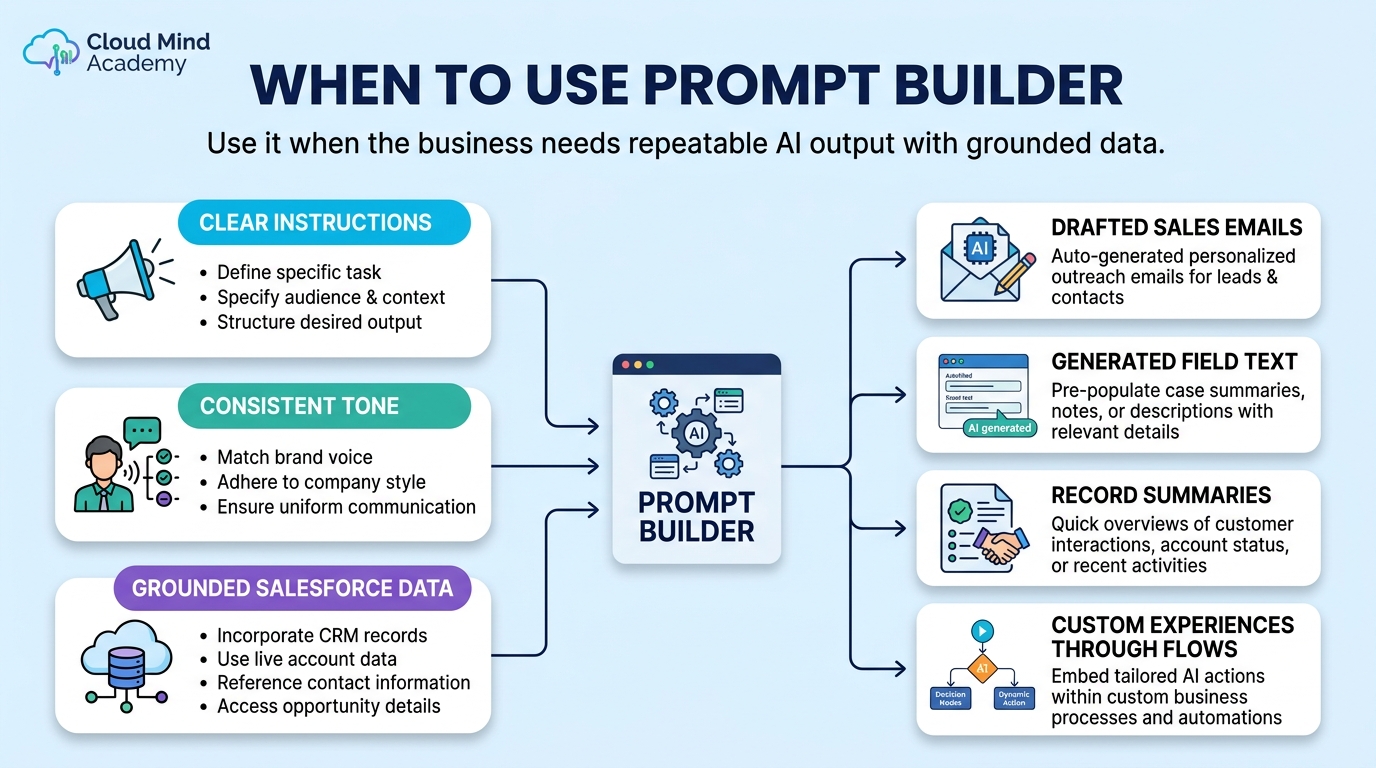
You’ll see Prompt Builder used for common outcomes like drafting sales emails, generating text for record fields, summarizing records, and powering custom experiences through flows and invocable actions.
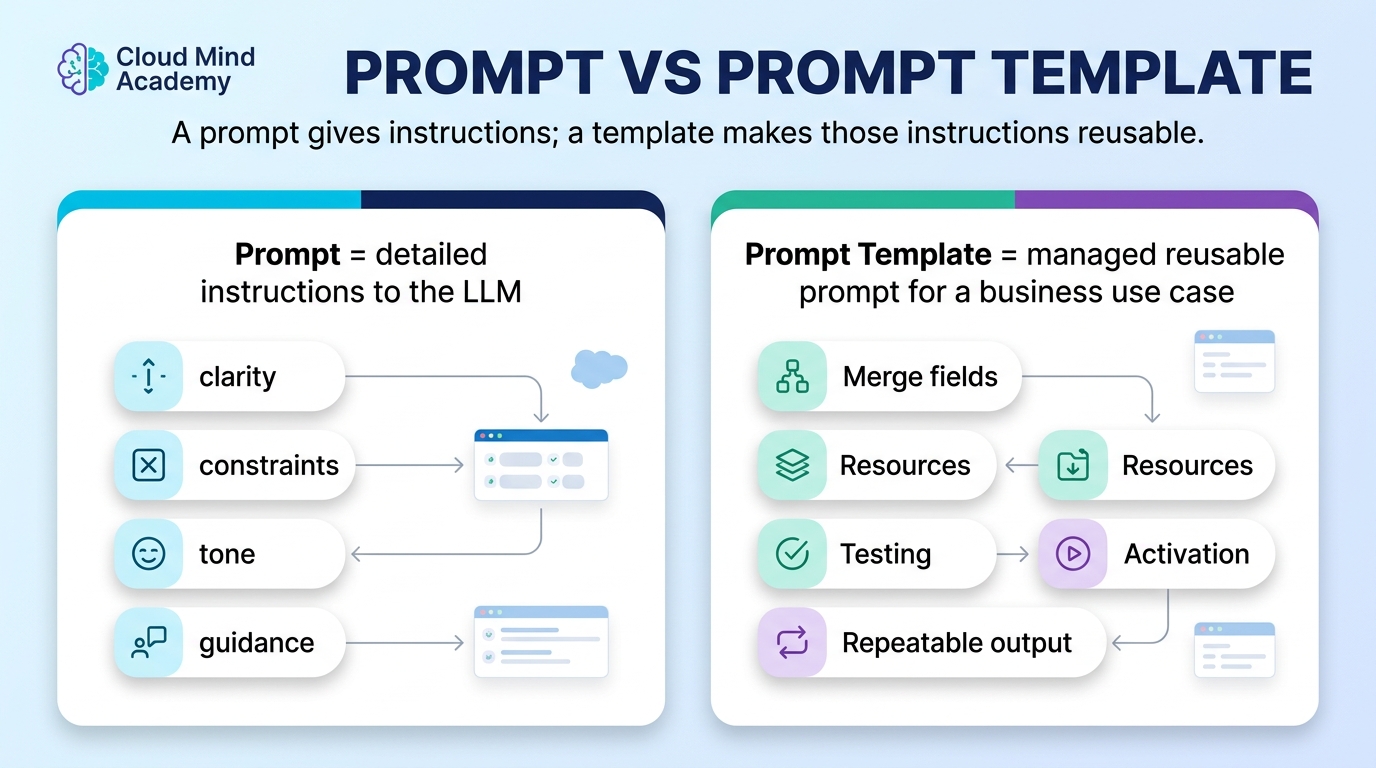
A prompt is the instruction set you send to the model. Output quality depends heavily on design: clarity, constraints, and guidance.
A prompt template is a managed, reusable version of a prompt—built for a specific business outcome and often grounded with data.
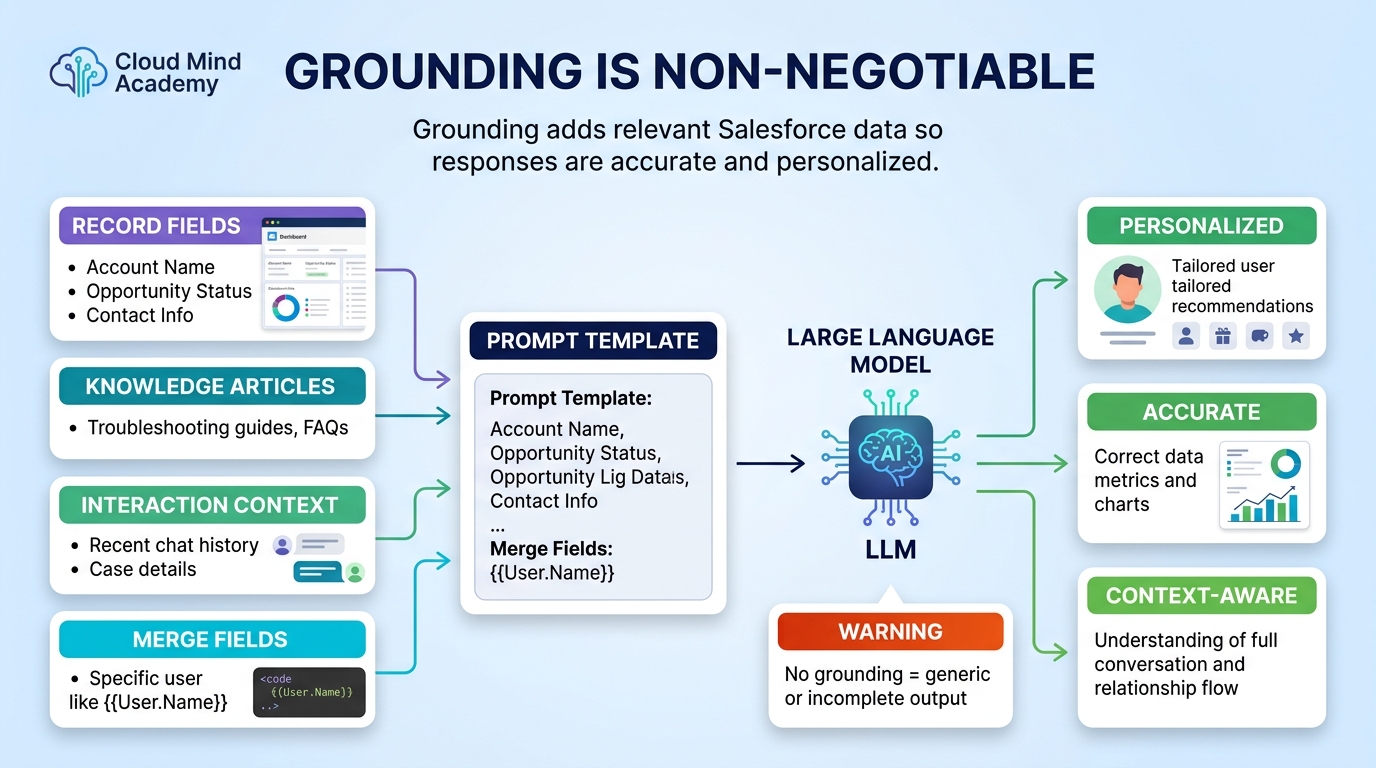
Grounding adds relevant data (like record fields, knowledge, or interaction context) so the response is personalized and accurate. In Prompt Builder, grounding is commonly done using merge fields/resources.
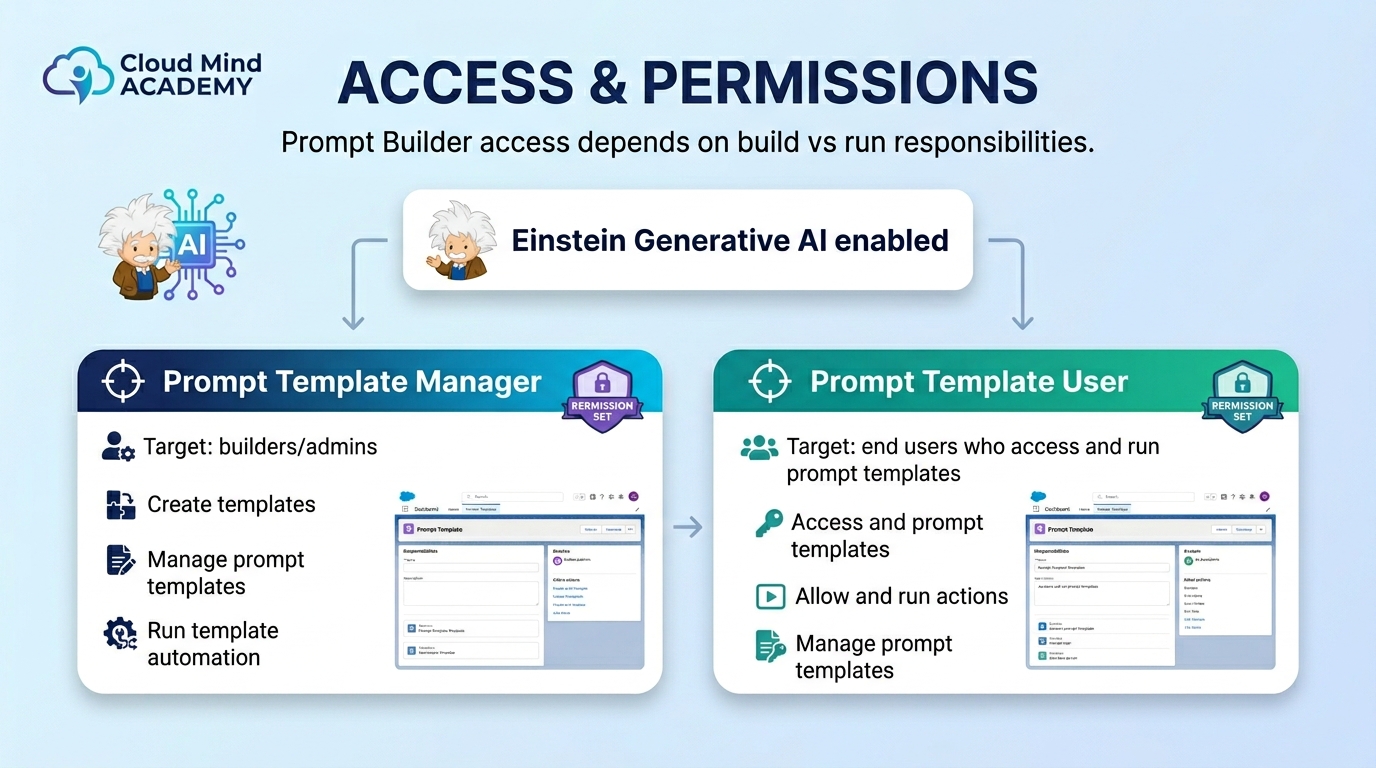
The Prompt Template Workspace is where you draft the prompt, add merge fields/resources for grounding, and test results before publishing.

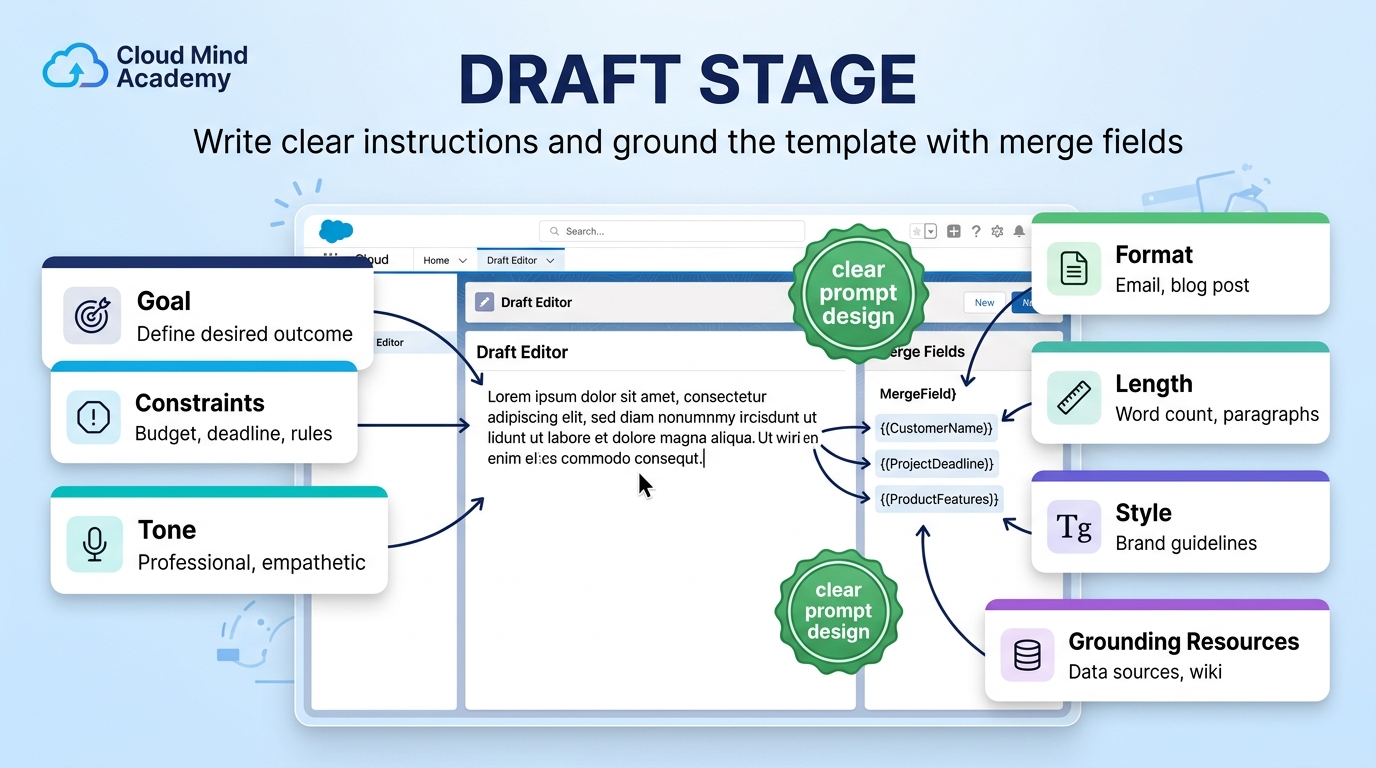

Prompt Builder access depends on enabling Einstein Generative AI and assigning permission sets that match the user’s responsibilities.
Create and manage prompt templates in Prompt Builder (builders/admins).
Access and run prompt templates (end users).
The fastest way to choose the right template type is to ask: Where will the output appear? (email composer, record field, summary panel, custom UI, service replies, etc.)

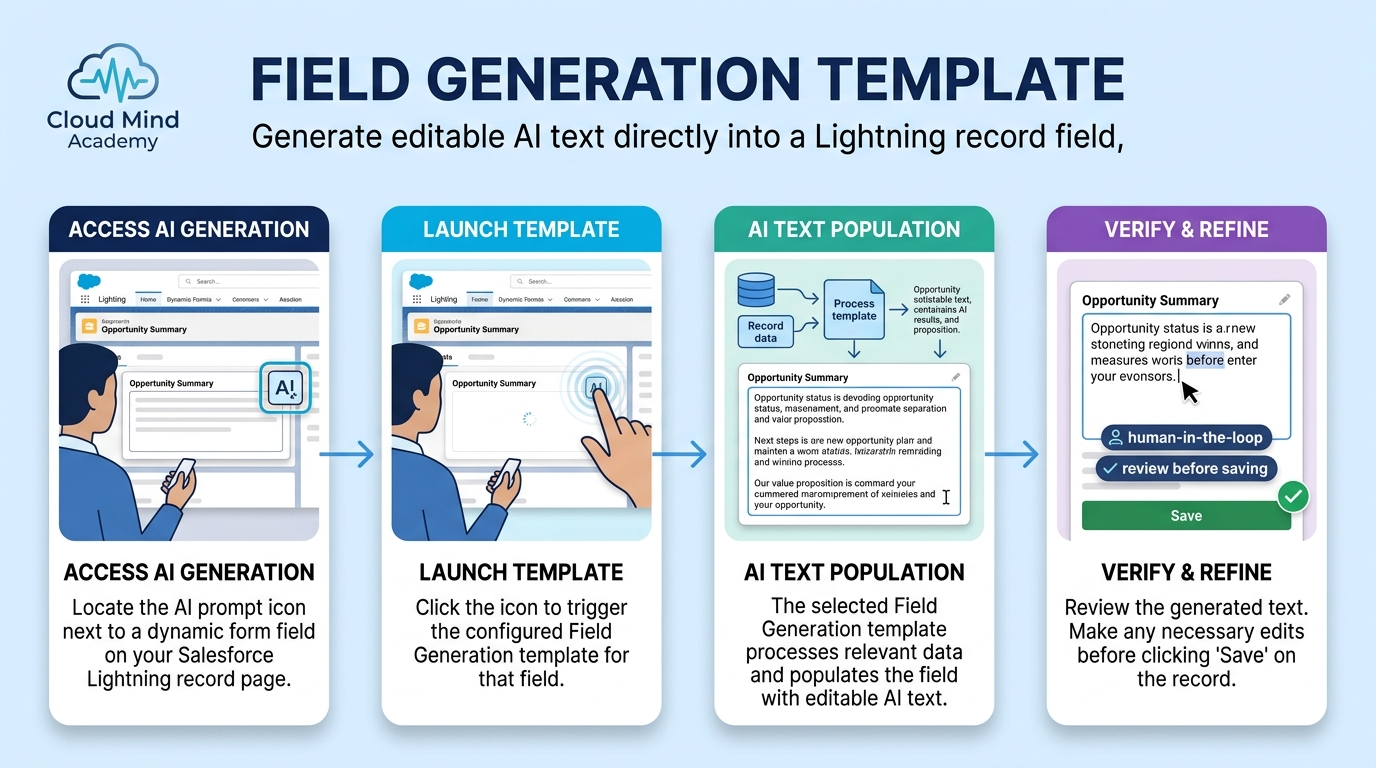
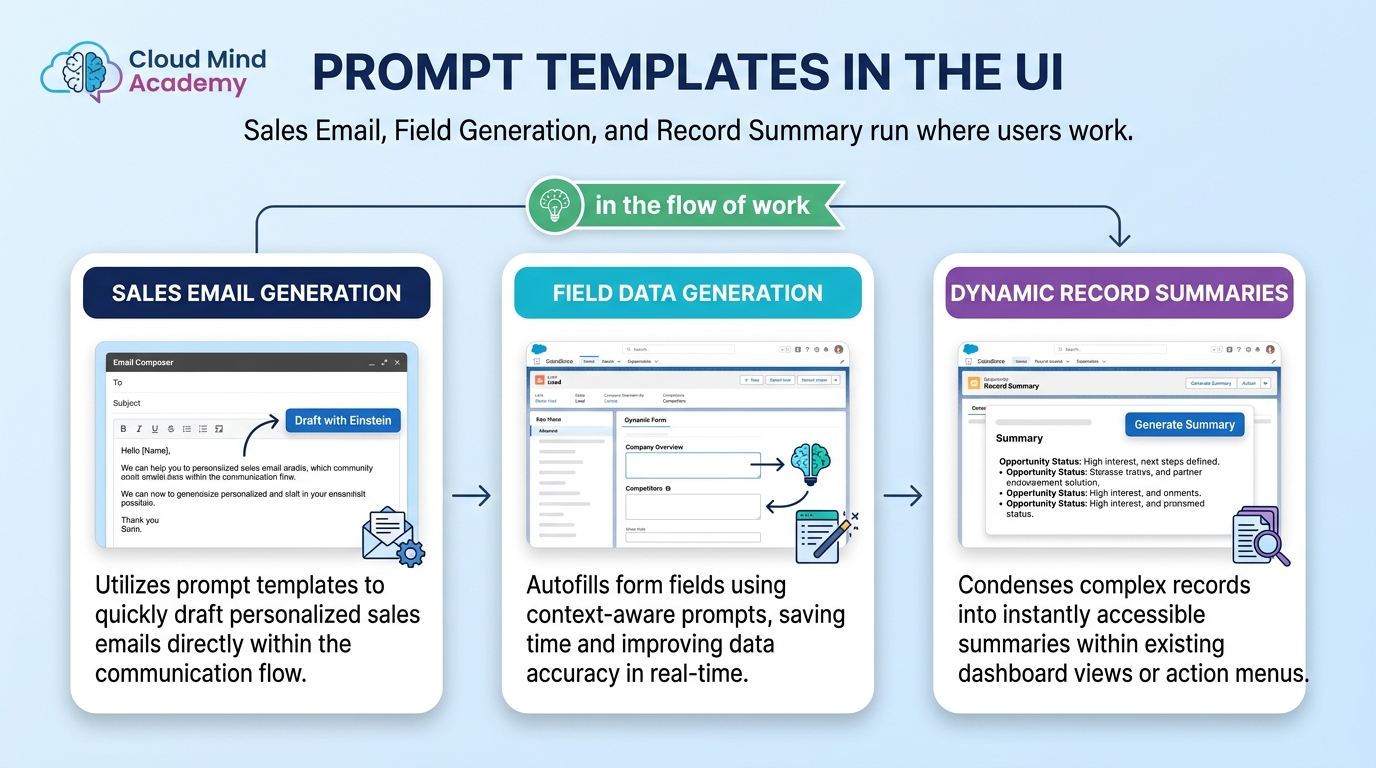
Generates content for a record field in Lightning. Users click an icon next to a dynamic form field to populate it.
Best for: editable AI text in-page (human-in-the-loop).
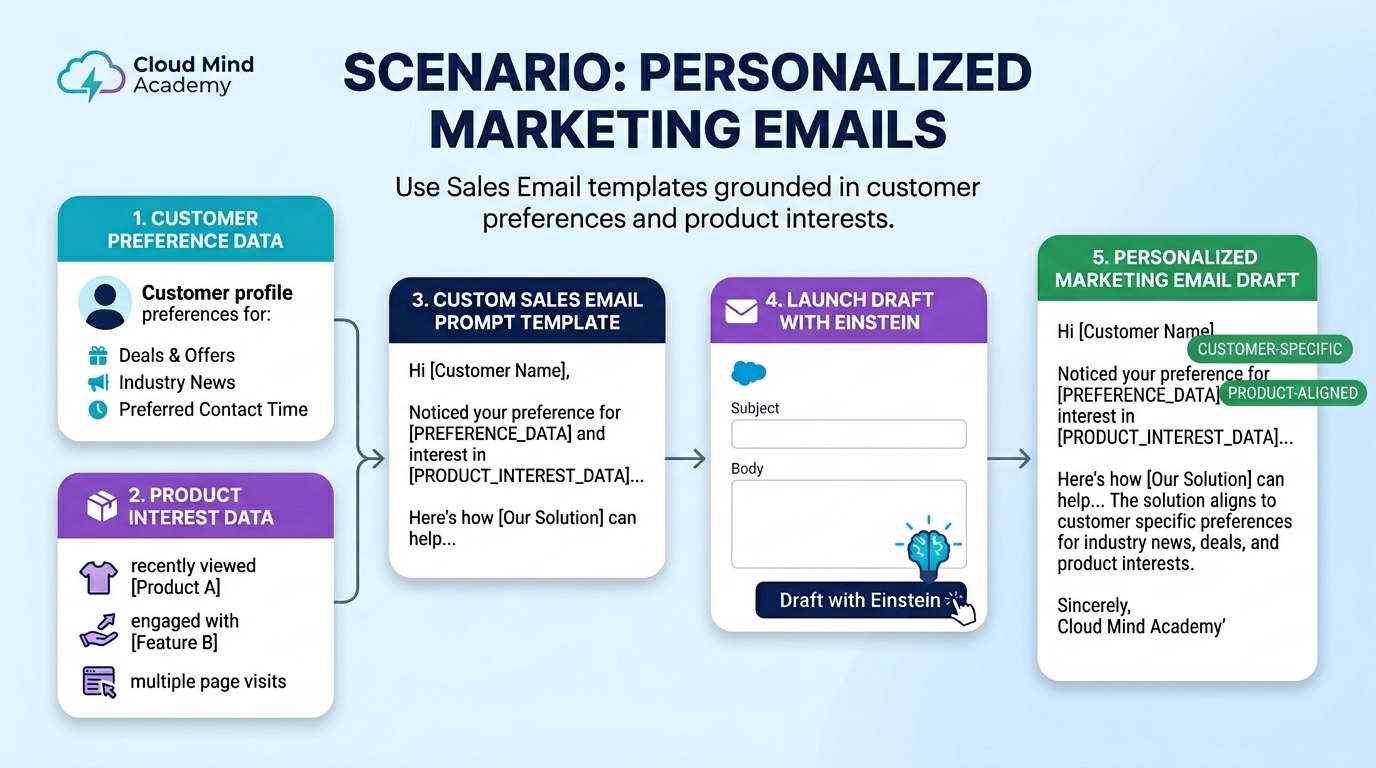
Generates personalized sales emails grounded in record data. Used from the email composer via Draft with Einstein.
Best for: email drafts with consistent tone + personalization.

Summarizes record data for a quick, comprehensive view. Often used by summary actions (including agent summaries).
Best for: consistent summaries across users/teams.
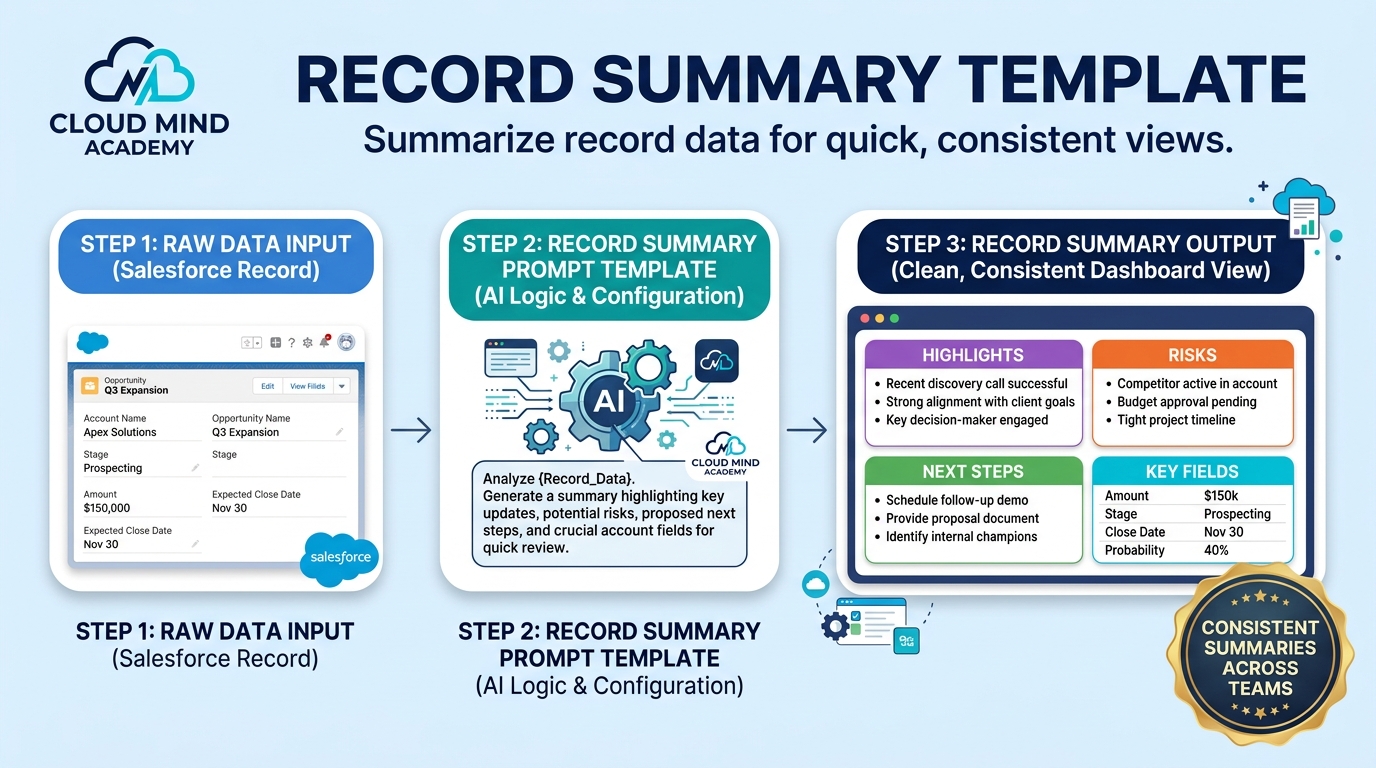
A “do anything” template for unique business use cases not covered by other types. Define resources and inputs.
Best for: proposals, multi-object outputs, custom experiences.

Tailors customer support replies for live chat/messaging—either context-aware or grounded in knowledge/case history.
Best for: support messaging with brand voice + policy grounding.

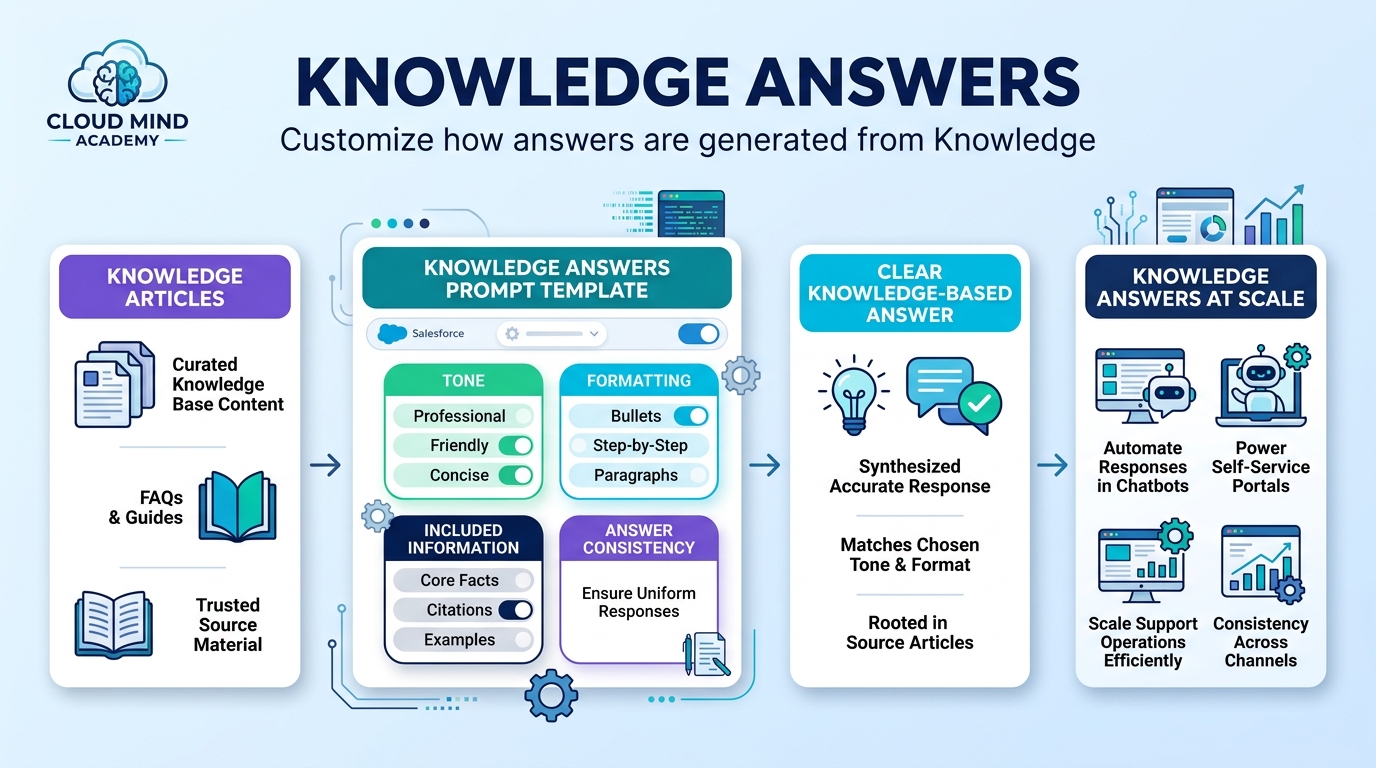
Customizes how answers are generated from Knowledge (tone, included info, formatting).
Best for: consistent knowledge-based answers at scale.
How you run a template depends on the template type and where you need the output.
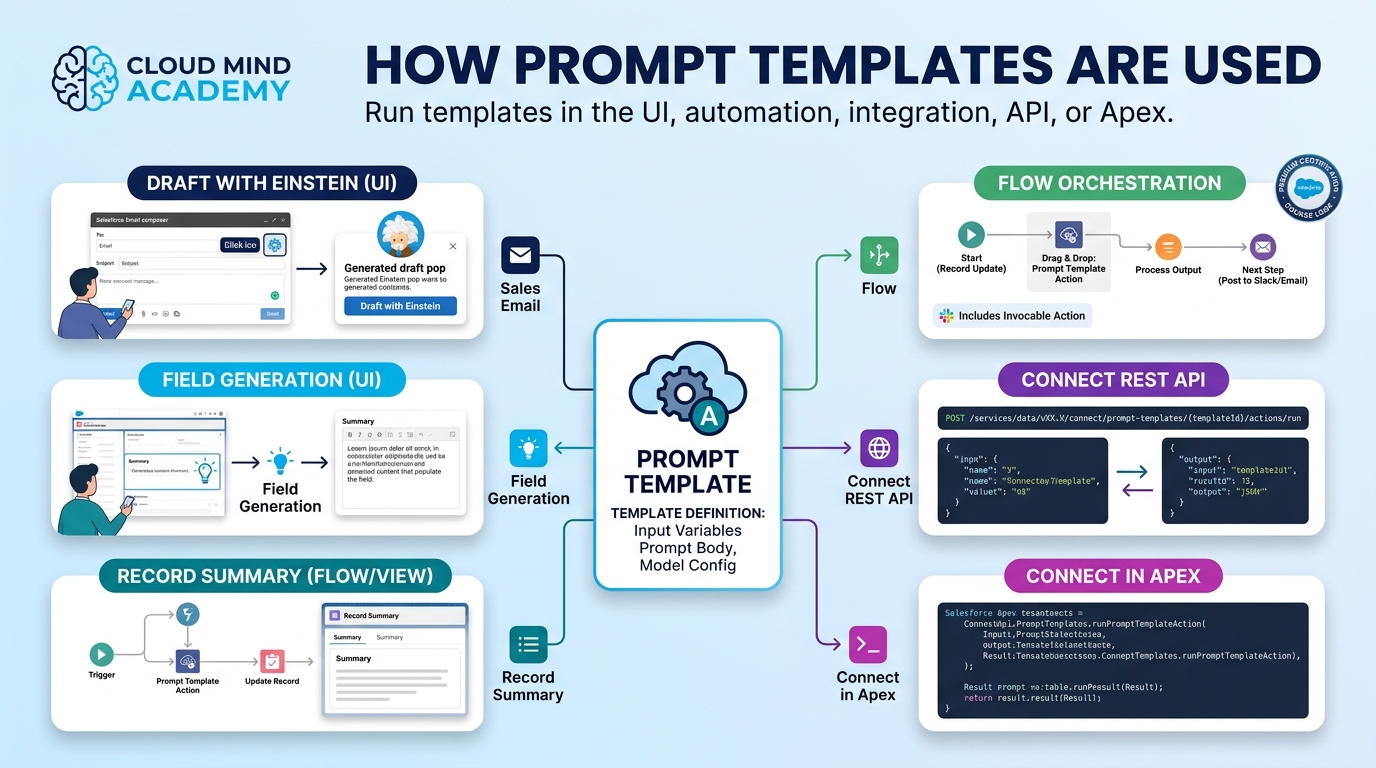
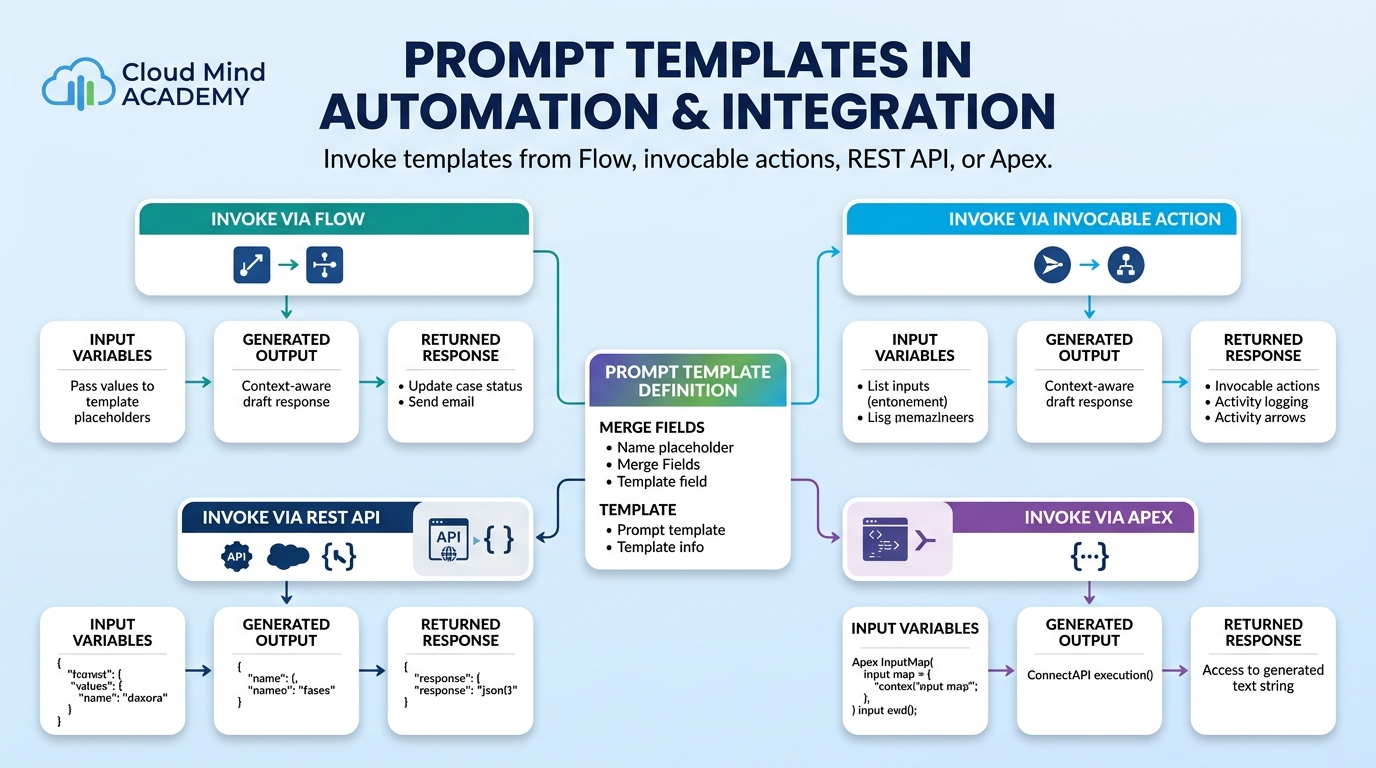
Flows can either invoke a prompt template or feed dynamic instructions/data into a template.
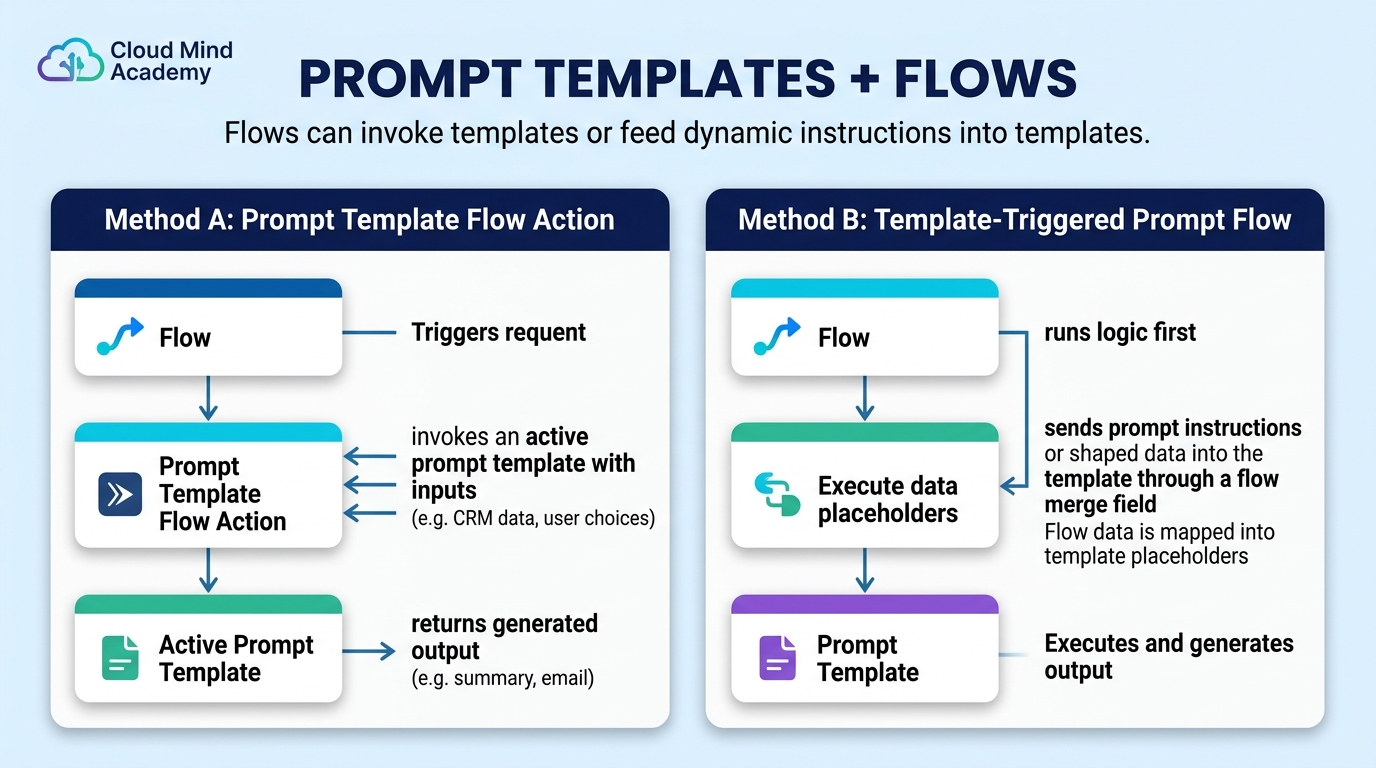
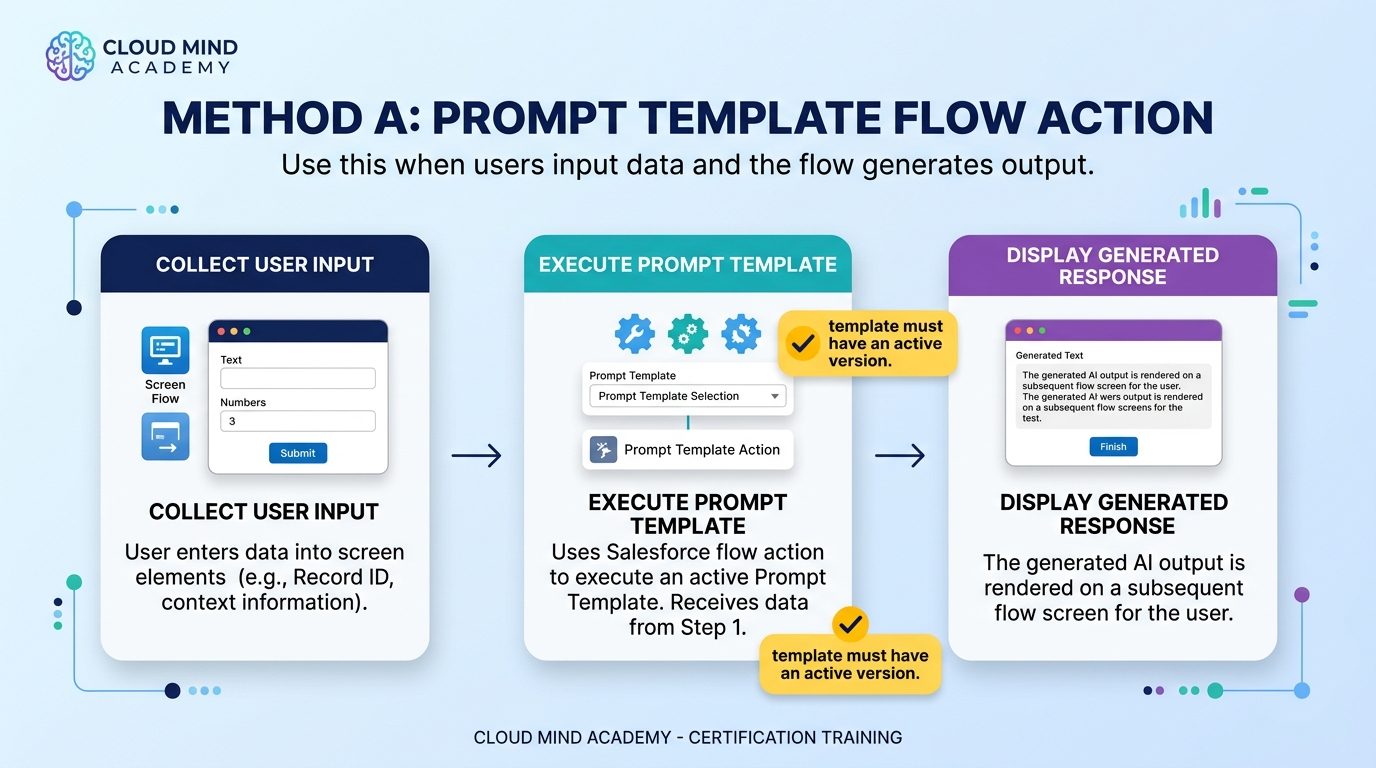
Add the Prompt Template action to a flow to generate a response using a selected template and inputs. (Template must have an active version.)
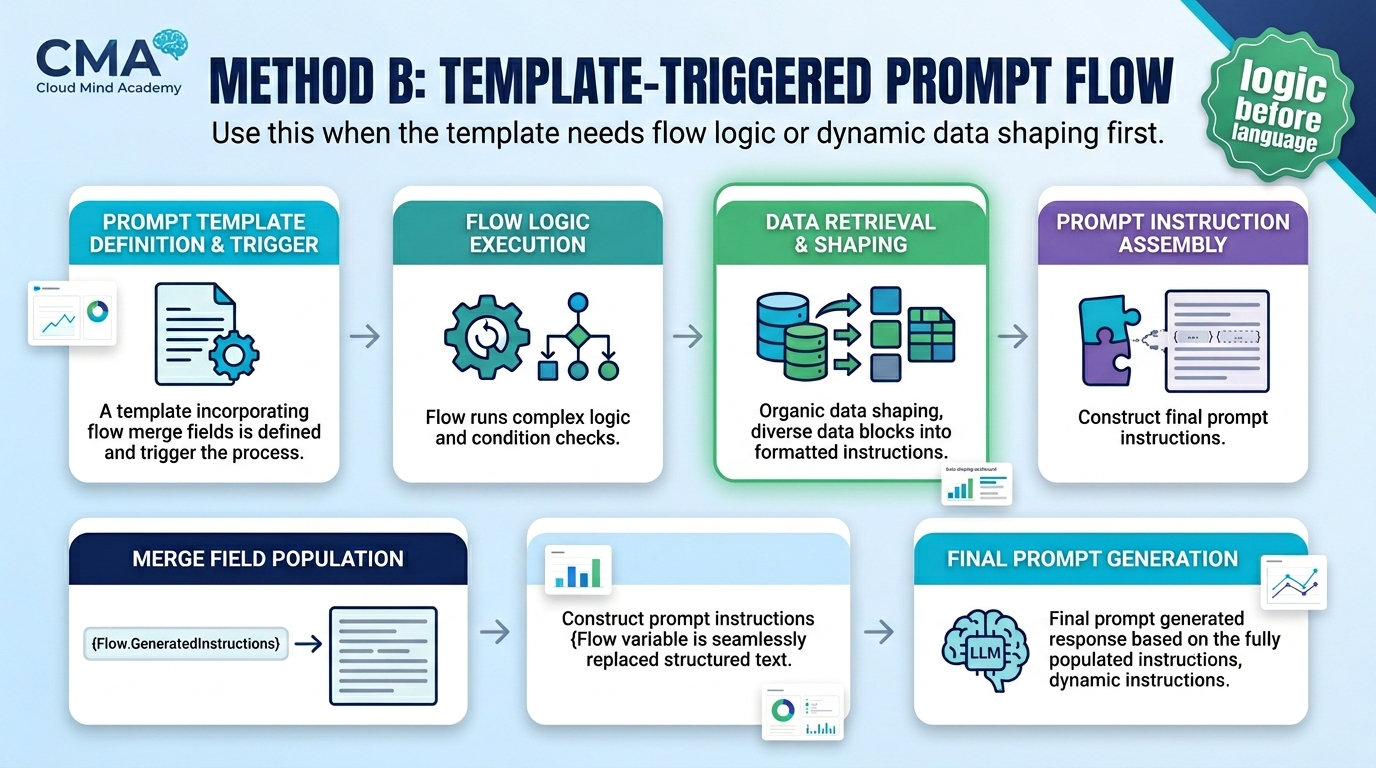
Use a template-triggered prompt flow to run logic and send “prompt instructions” into the template via a flow merge field. Great when you need dynamic data shaping before generation.
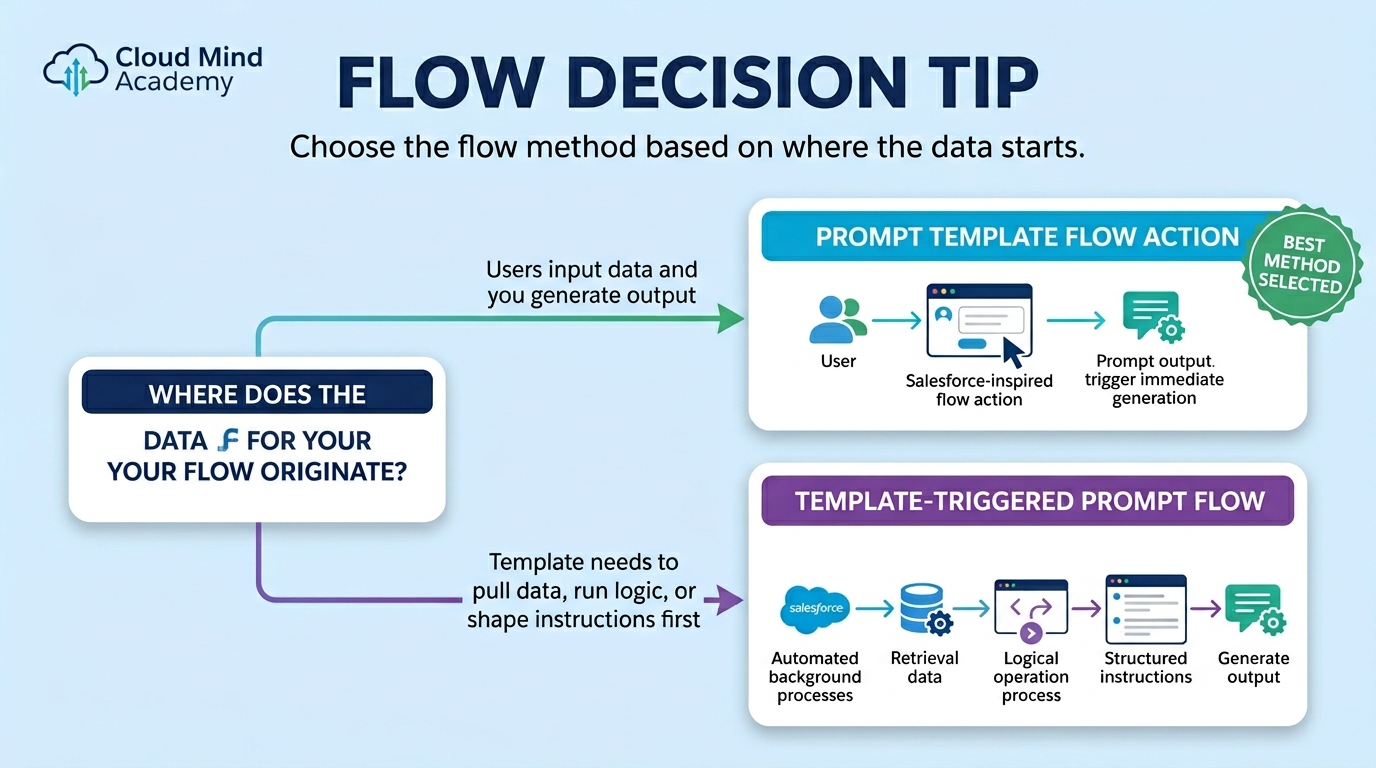
These scenarios mirror how questions are written: identify the right template type and how it should be invoked.
A team needs an output that isn’t covered by standard template types—like generating a structured sales proposal using data from multiple objects.

A hotel wants personalized guest summaries (interests and activity preferences) accessible on the contact record page only.

Users enter a sales order number and Salesforce should generate and display an order summary using a predefined prompt template.

Leadership wants a dynamic form field auto-populated by AI, but easy for users to review and edit before finalizing (oversight + validation).

A company wants marketing emails that highlight products aligned to each customer’s interests and preferences.